
Madhya Pradesh runs its government school system on a single web platform. Teacher postings, salary records, guest-faculty vacancies, student enrolment, scholarship payments, free textbooks and uniforms, hostel applications — the paperwork behind all of it now sits inside Education Portal 3.0, the School Education Department’s current-generation portal at educationportal3.in.
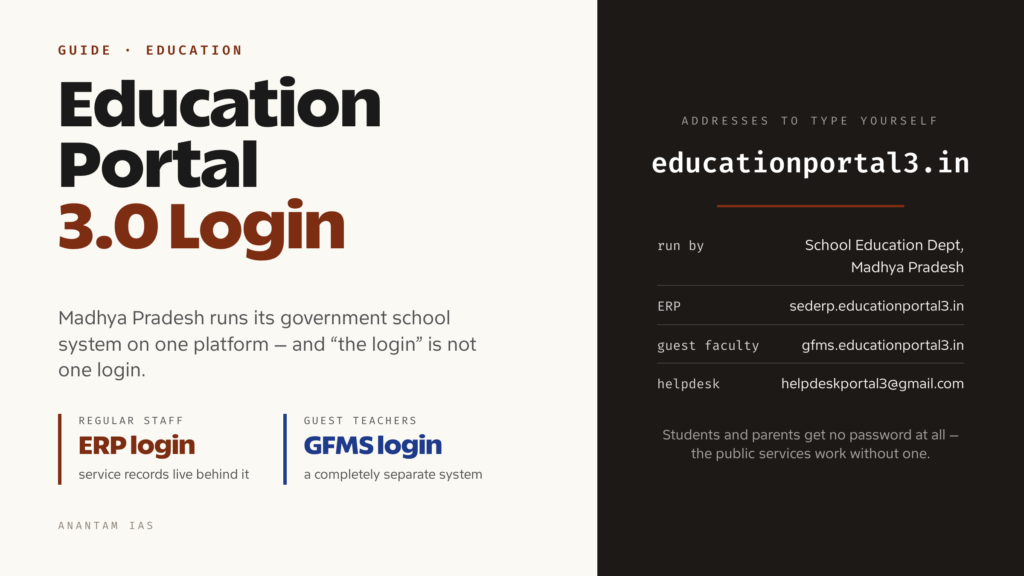
The confusing part is that “Education Portal 3.0 login” is not one login. There are separate sign-in doors for regular departmental staff and for guest teachers, and a large public section that needs no password at all. Getting the right door on the first attempt saves most of the trouble people run into. This guide covers what the portal is, which login belongs to whom, how to sign in and register, what you can actually do inside, and how to fix the errors that stop people at the login box.
What Education Portal 3.0 Is and Who Should Use It
Education Portal 3.0 belongs to the School Education Department, Government of Madhya Pradesh. It is the department’s own administrative system — the place where school data, staff records and scheme payments are recorded and monitored across the state’s government schools. The home address is educationportal3.in, and the site carries the department’s live circulars, appointment orders and recruitment notices from the DPI, Rajya Shiksha Kendra, CM Rise, RMSA and the tribal wing, alongside district and block office notices.
It is the successor to the department’s earlier Education Portal 2.0 and Shiksha Portal generation. The “3.0” in the name is the department’s own version label, not a nickname invented by a coaching site. Be careful here: a large number of private websites with names like “mpeducationportal3” and “theeducationportal3” rank well in search and look official. They are not the department. Type the address rather than trusting a search result, and never enter your password on a site whose address you did not type yourself.
Who needs a login, and which one:
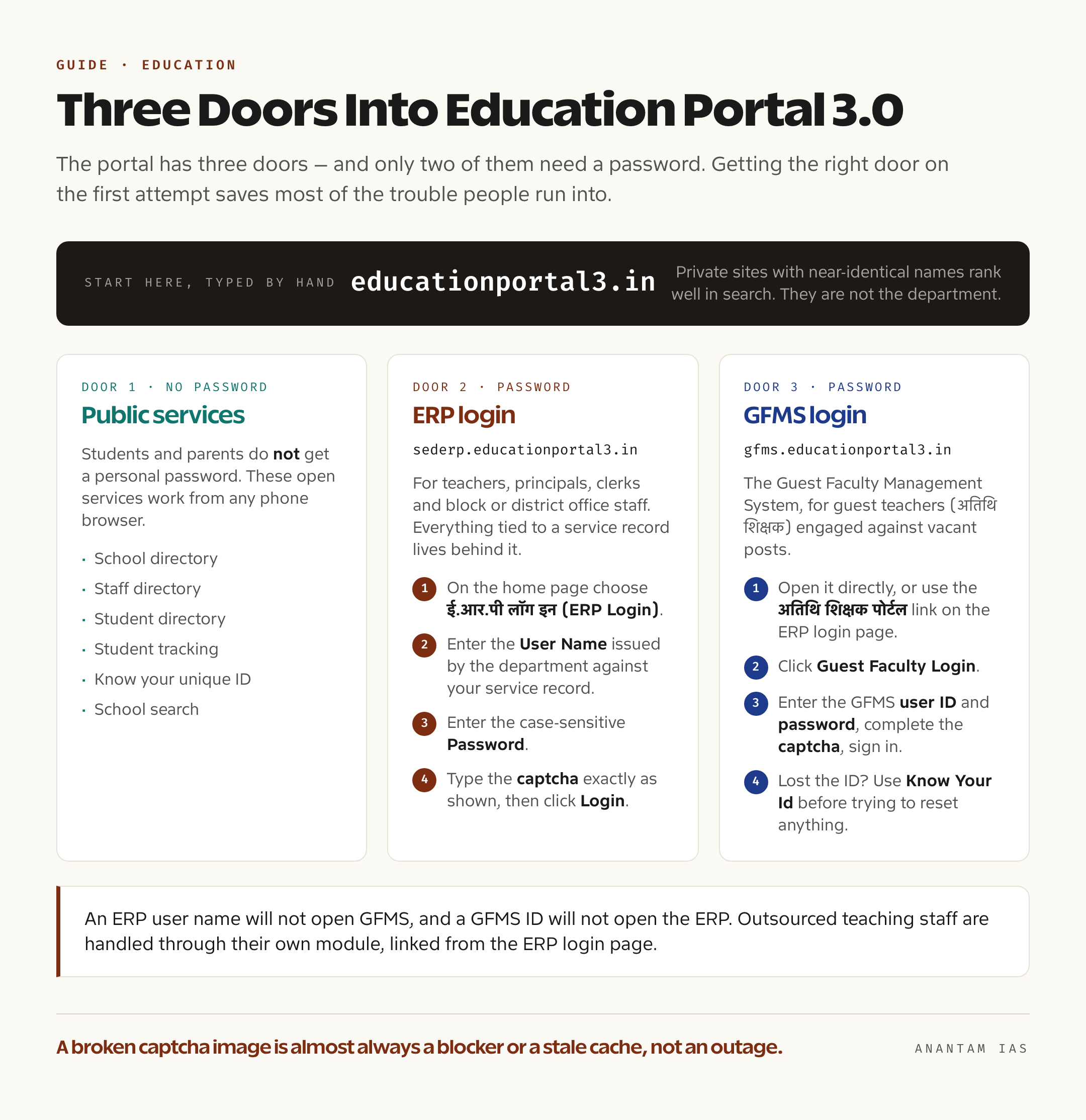
- Regular departmental staff — teachers, principals, clerks, and block or district office staff. Their sign-in is the ERP login at sederp.educationportal3.in. Everything tied to a service record lives behind it.
- Guest teachers (अतिथि शिक्षक) — people engaged against vacant posts for an academic session. They use a completely separate system, the Guest Faculty Management System, at gfms.educationportal3.in. An ERP user name will not open GFMS and a GFMS ID will not open the ERP.
- Outsourced teaching staff use the Project Outsource Management System (POMS), which is separate from ERP and GFMS credentials.
Students and parents do not get a personal password. That surprises people who arrive expecting a student login. What the department offers instead is a set of open, no-login services on the main portal: a school directory, a staff directory, a student directory, student tracking, “know your unique ID”, and a school search. Anyone can use those from a phone browser without an account.
How to Log In, Step by Step
The two logins look similar and behave slightly differently, so take them one at a time.
Regular staff — the ERP login:
- Open educationportal3.in in a browser. Type the address; do not click a sponsored result.
- On the home page, choose ई.आर.पी लॉग इन (ERP Login). This takes you to sederp.educationportal3.in.
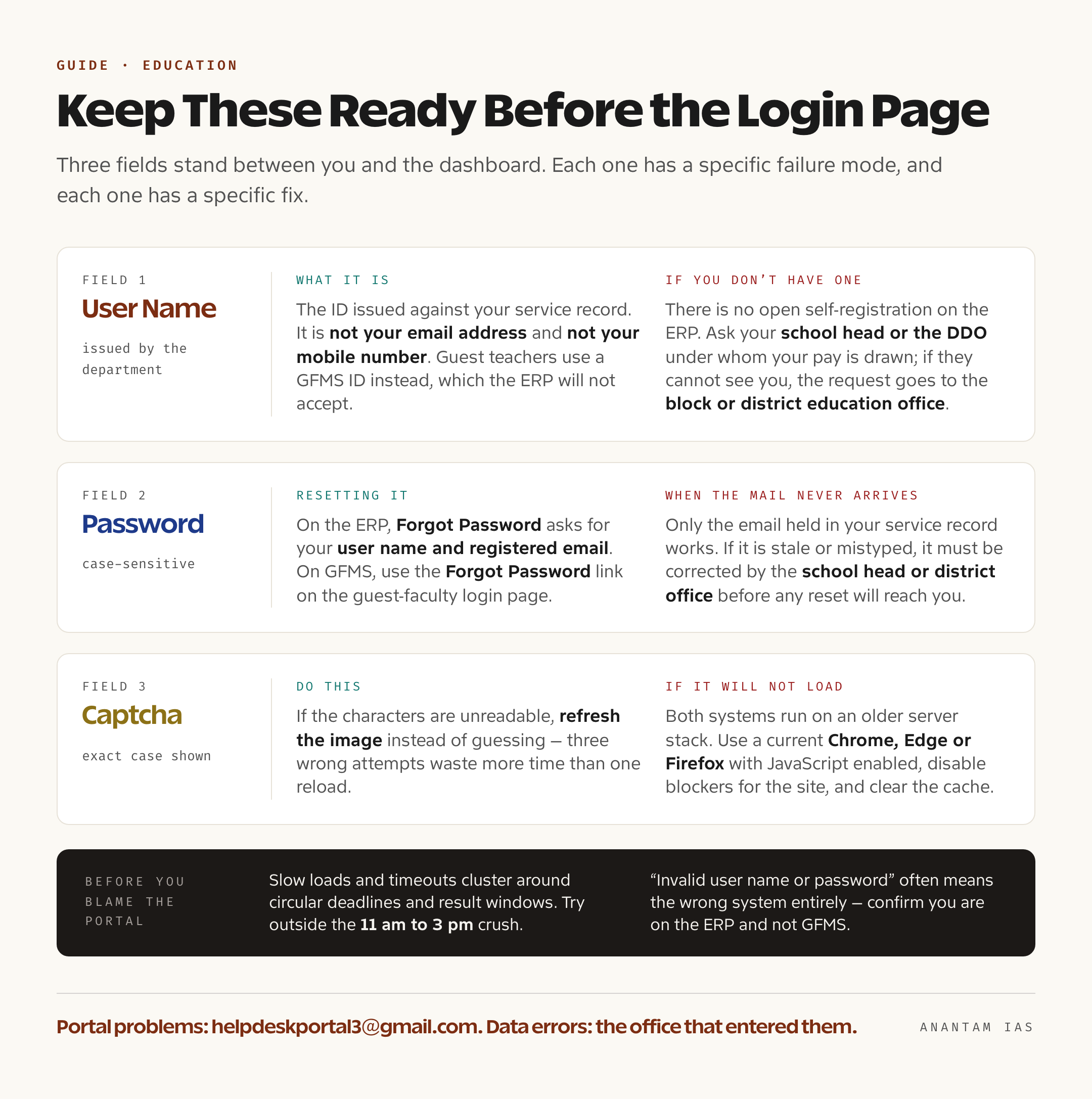
- Enter your User Name. This is the ID issued to you by the department against your service record — it is not your email address and not your mobile number.
- Enter your Password. It is case-sensitive.
- Type the captcha exactly as shown. If the characters are unreadable, refresh the image instead of guessing; three wrong attempts waste more time than one reload.
- Click Login.
Guest teachers — the GFMS login:
- Open gfms.educationportal3.in directly, or use the अतिथि शिक्षक पोर्टल link on the ERP login page.
- Click अतिथि शिक्षक लॉग इन (Guest Faculty Login).
- Enter your GFMS user ID and password, complete the captcha, and sign in.
- If you do not remember the ID, use the Know Your Id link on the GFMS home page before trying to reset anything. Recovering the ID and recovering the password are two different flows, and people routinely attempt the second when they need the first.
A practical note on browsers. Both systems run on an older server stack and behave best in a current Chrome, Edge or Firefox window with JavaScript enabled and no ad-blocker interfering with the captcha image. If the captcha shows as a broken image, that is almost always a blocker or a stale cache, not a portal outage.
Also note that the GFMS home page publishes the department’s guest-teacher circulars in the open, without any login — joining and re-joining instructions, honorarium payment orders, e-attendance requirements, vacancy lists and district-committee orders. If your question is “what has the department ordered about guest teachers this month”, you can answer it before logging in at all.
Registering and Getting Your Credentials for the First Time
There is no open self-registration for the ERP side. That is by design — the ERP holds service records, so identities are created by the department, not by the user.
If you are a newly posted teacher or a newly transferred employee and you have no ERP credentials yet:
- Ask your school head or the DDO under whom your pay is drawn. The institution-level administrator is the person who maps you into the system and issues or revives your ID.
- If the school head cannot see you in the system, the request goes up to the block or district education office, which handles staff mapping for its schools.
- Keep your unique employee identifier and DDO code handy. The main portal has two open lookups — अपनी विशिष्ट आईडी जानें (know your unique ID) and अपने DDO Code जानें — which let you fetch both without troubling anyone.
The guest-faculty side is different, and it is where most first-time registration actually happens. GFMS is the system through which applicants register, get their details verified, and become eligible for placement against vacant posts. The department opens registration and verification windows by circular ahead of each academic session and publishes the dates on the GFMS home page. As of the current session, the GFMS dashboard displays more than three lakh verified applicants in its pool, which gives you a sense of how competitive the vacancy lists are.
The broad sequence for a guest-teacher applicant is: register on GFMS, fill in academic and eligibility details, get those details verified at the school or district level per the department’s current circular, then watch the published vacancy lists (अतिथि शिक्षक हेतु संभावित रिक्तियाँ) for the subject and school you can apply against. Because the exact window, the document list and the verification authority change from session to session, read the latest circular on the GFMS home page rather than following an old blog post — the orders are dated and listed newest first, so this takes about a minute.
Key Services on the Dashboard
What you see after logging in depends on your role. Broadly, this is what the platform delivers.
| Area | What it covers | Who uses it |
|---|---|---|
| Staff and service records | Posting orders, subject allocation, transfers, pay and DDO mapping | Regular staff, school heads, office staff |
| Guest faculty (GFMS) | Registration, verification, vacancy lists, engagement orders, honorarium and e-attendance | Guest teachers, school heads |
| Student records | Enrolment, student directory and student tracking | Schools; directories are public |
| Scholarships | The integrated scholarship scheme management system | Schools and sanctioning offices |
| Entitlement schemes | Free textbooks, free uniforms, the free scooty scheme and the laptop incentive for high scorers | Schools and district offices |
| Inclusive education | Identification, aid and tracking for children with special needs | Schools, resource staff |
| Hostels | KGBV, model and excellence hostels, hostels for children with disabilities, plus the hostel application form | Schools; the application is public |
| Institutions | DIET and district resource centres, Sainik schools, the central library scheme | Department offices |
| Teaching resources | The “Hamare Shikshak” section and the digital repository | Teachers, open to all |
| Grievances | Public servants can record a grievance after logging in to the portal | Departmental staff |
The department also runs companion mobile apps linked from the portal — an mEducationPortal app, a child-tracking app and a Hamare Shikshak app. They are convenience wrappers around the same data, not separate accounts, so the credentials that work on the web work there.
Common Login Problems and How to Fix Them
| Problem | What is usually happening | What to do |
|---|---|---|
| “Invalid user name or password” on the ERP | Wrong portal, or a lapsed password | Confirm you are on sederp.educationportal3.in and not GFMS. Then use Forgot Password, which asks for your user name and registered email. |
| Guest teacher cannot log in | Forgotten ID, or a password never set after registration | Use Know Your Id on the GFMS home page first, then the Forgot Password link on the guest-faculty login page. The portal itself advises resetting via that link rather than raising a ticket. |
| Captcha will not load or is rejected | Ad-blocker, cached page, or an outdated browser | Reload the page, disable blockers for the site, clear the cache, and retype the captcha in the exact case shown. |
| Password reset email never arrives | The email on record is stale or mistyped | Only the email held in your service record works. If it is wrong, it has to be corrected by the school head or the district office before any reset will reach you. |
| Portal loads slowly or times out | Peak load around circular deadlines and result windows | Try outside the 11 am to 3 pm crush. Deadline days are the worst time to attempt bulk entry. |
| You are in the wrong system entirely | Guest teacher trying the ERP, or a regular teacher trying GFMS | Match the role to the door: ERP for departmental staff, GFMS for guest faculty. |
For anything the reset flows cannot solve, the department publishes a portal helpdesk email — [email protected] — on the ERP login page, and it asks departmental employees to record their grievance after logging in to Education Portal 3.0 so that it is tracked against their record. For data errors in your service record, the first stop is still your school head or DDO, because the correction has to be made by the office that owns the entry.
One habit worth building: whenever a circular changes a process — verification dates, e-attendance rules, document lists — the authoritative version is the PDF on the portal, dated and numbered. Screenshots forwarded on WhatsApp are how half the confusion starts.
FAQ
Is there a student or parent login on Education Portal 3.0? No. Students and parents do not get individual passwords. The portal instead offers open services — school search, the school and student directories, student tracking, “know your unique ID” and the hostel application form — that work without signing in.
What is the difference between the ERP login and the GFMS login? The ERP login at sederp.educationportal3.in is for regular School Education Department staff and holds service-record functions. GFMS at gfms.educationportal3.in is the Guest Faculty Management System, used by guest teachers for registration, verification, vacancies and engagement. The two accounts are unrelated and cannot be used interchangeably.
I forgot my Education Portal 3.0 password. How do I reset it? On the ERP login page, use Forgot Password and supply your user name along with the email registered in your record. On GFMS, use the Forgot Password link on the guest-faculty login page. If the ID itself is the problem rather than the password, use Know Your Id on GFMS first.
Can I register myself as a new user on the portal? Not on the ERP side — those identities are created by the department through your school head or DDO. Guest-teacher applicants do register themselves on GFMS, but only during the registration and verification windows the department announces by circular.
Which is the official website? The School Education Department’s platform is at educationportal3.in, with the ERP at sederp.educationportal3.in and guest faculty at gfms.educationportal3.in. Many private sites use near-identical names and rank highly in search; do not enter credentials on them.
Where do I complain if something on the portal is wrong? The portal displays [email protected] for portal-related problems, and asks departmental employees to log in and record the grievance so it stays attached to their record. Errors in your own service or school data must be corrected by the office that entered them — usually the school head, then the block or district education office.
Tell Google you want more of this.
Add Anantam IAS as a preferred sourceOne tap, and this site shows up more often in your own Top Stories, AI Overviews and AI Mode. Remove it any time.