
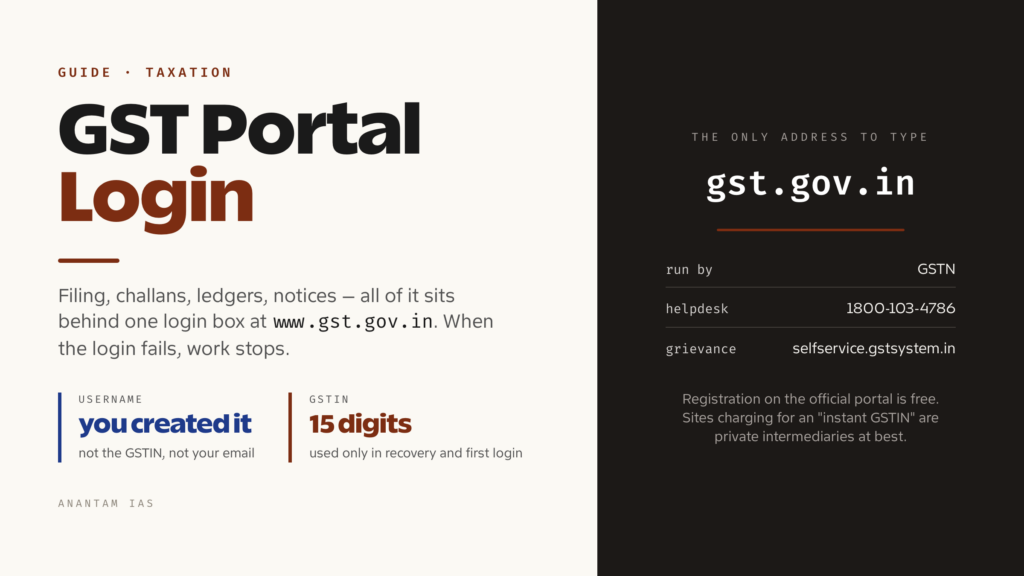
Almost everything a GST-registered business does with the tax department now happens behind one login box. Filing a return, paying a challan, downloading a registration certificate, replying to a notice, checking whether a supplier actually exists — all of it sits inside the account you open at gst.gov.in. So when the login fails, work stops.
This guide walks through the whole thing in the order you’ll actually need it: what the portal is, how to sign in, what the very first login looks like (it’s different from every login after it), how to register if you don’t have credentials yet, what the dashboard gives you, and what to do when the password, the username or the OTP lets you down.
What the GST Portal Is and Who Should Use It
The GST portal is the common front end for India’s Goods and Services Tax system. It’s run by the Goods and Services Tax Network — GSTN — which builds and operates the IT backbone shared by the Centre, every state, and the tax officers who assess you. The official address is gst.gov.in, and it is the only address you should ever type. Plenty of lookalike sites sell “GST registration” services; none of them is the government.
The portal replaced a patchwork of separate state VAT sites, central excise and service tax systems, each with its own login and its own forms. Since July 2017 a single registration number, the 15-digit GSTIN, works across all of them.
You need a login if you are any of these:
- A supplier of goods or services whose turnover crosses the registration threshold, or who is required to register regardless of turnover (inter-state suppliers, e-commerce operators, agents, and others).
- A business that has voluntarily registered to claim input tax credit.
- A composition taxpayer paying at a flat rate.
- A tax deductor or collector at source — most government departments and marketplaces fall here.
- A person applying for a fresh registration, who logs in with a temporary reference number rather than a GSTIN.
You do not need a login for the read-only services. Verifying a GSTIN, searching a taxpayer by PAN and looking up HSN codes are open to the public from the homepage — worth knowing, because it saves a login when someone asks you to confirm a supplier is genuine.
How to Log In, Step by Step
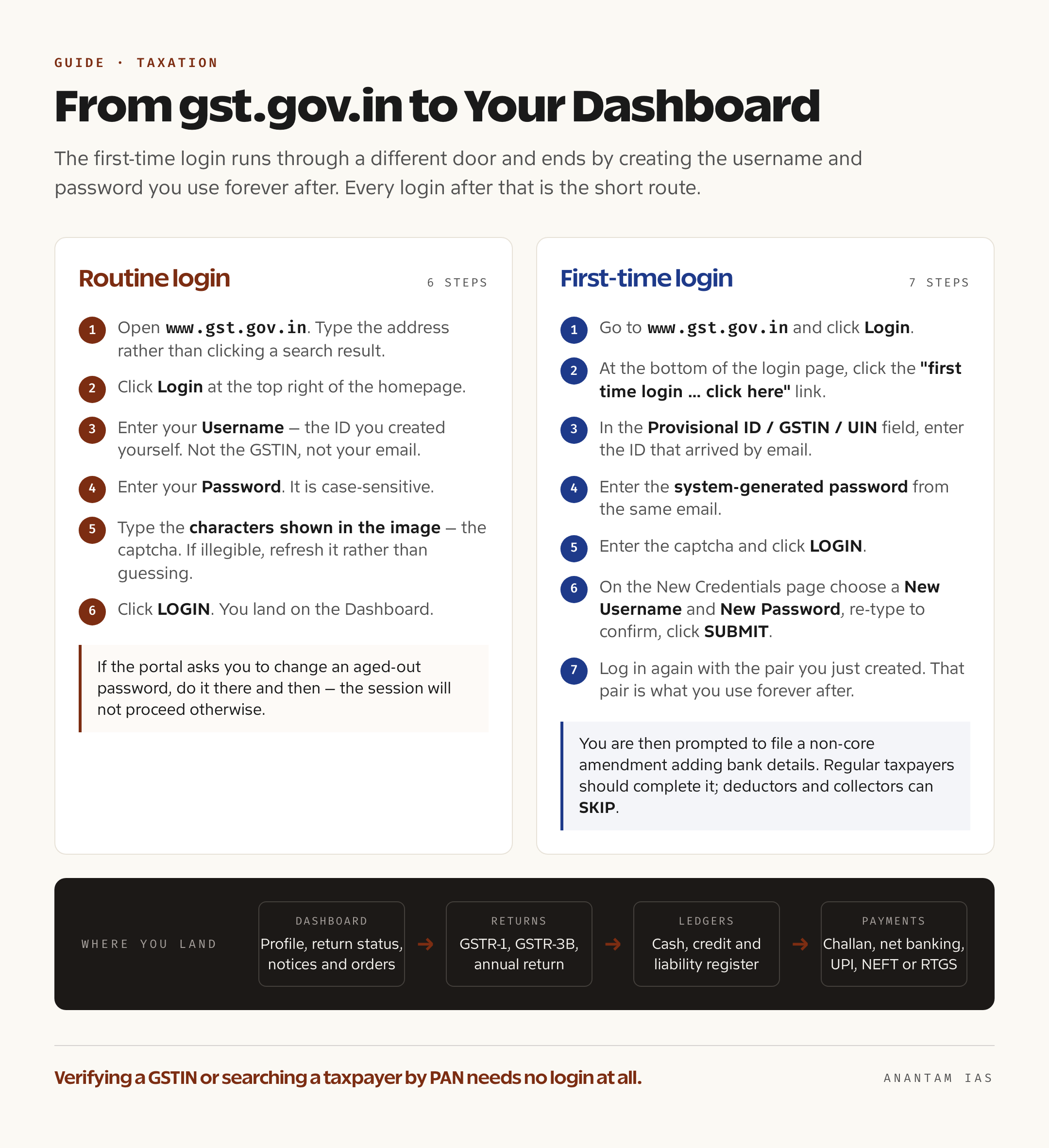
The routine login is short. Keep your username and password handy — not the GSTIN, which is only used in specific recovery flows.
- Open the official GST portal in a browser. Type the address rather than clicking a search result.
- Click Login at the top right of the homepage.
- Enter your Username. This is the ID you created yourself; it is not the GSTIN and not your email.
- Enter your Password. It’s case-sensitive.
- Type the characters shown in the image — the captcha. If it’s illegible, refresh it rather than guessing.
- Click LOGIN.
You land on the Dashboard. If the portal asks you to change your password because it has aged out, do it there and then; the session won’t proceed otherwise.
GSTN may ask for a second OTP after the usual username, password and captcha. The extra check appears on a first login, a new or untrusted device, repeated rapid attempts or a distant location. A browser you have already authenticated may skip it on later logins. The portal can also block sign-ins from outside India or an untrusted IP, so resetting the password won’t fix every access failure. The official GST login guide explains the current checks.
The first-time login is different. If you have just been issued credentials — a Provisional ID or a GSTIN with a system-generated password sent to your registered email — you cannot use the normal box. GSTN’s own user guide sets out this sequence:
- Go to www.gst.gov.in and click Login.
- At the bottom of the login page you’ll see a line reading “First time login: If you are logging in for the first time, click here to login.” Click here.
- In the Provisional ID / GSTIN / UIN field, enter the ID that arrived by email.
- In the Password field, enter the system-generated password from the same email.
- Enter the captcha and click LOGIN.
- On the New Credentials page, choose a New Username and a New Password, re-type the password to confirm, and click SUBMIT.
- You’ll get a confirmation message. Log in again — this time with the username and password you just created. That pair is what you use forever after.
New taxpayers are usually prompted at this point to file a non-core amendment adding bank account details. Regular taxpayers should complete it; deductors and collectors can click SKIP and add the details later.
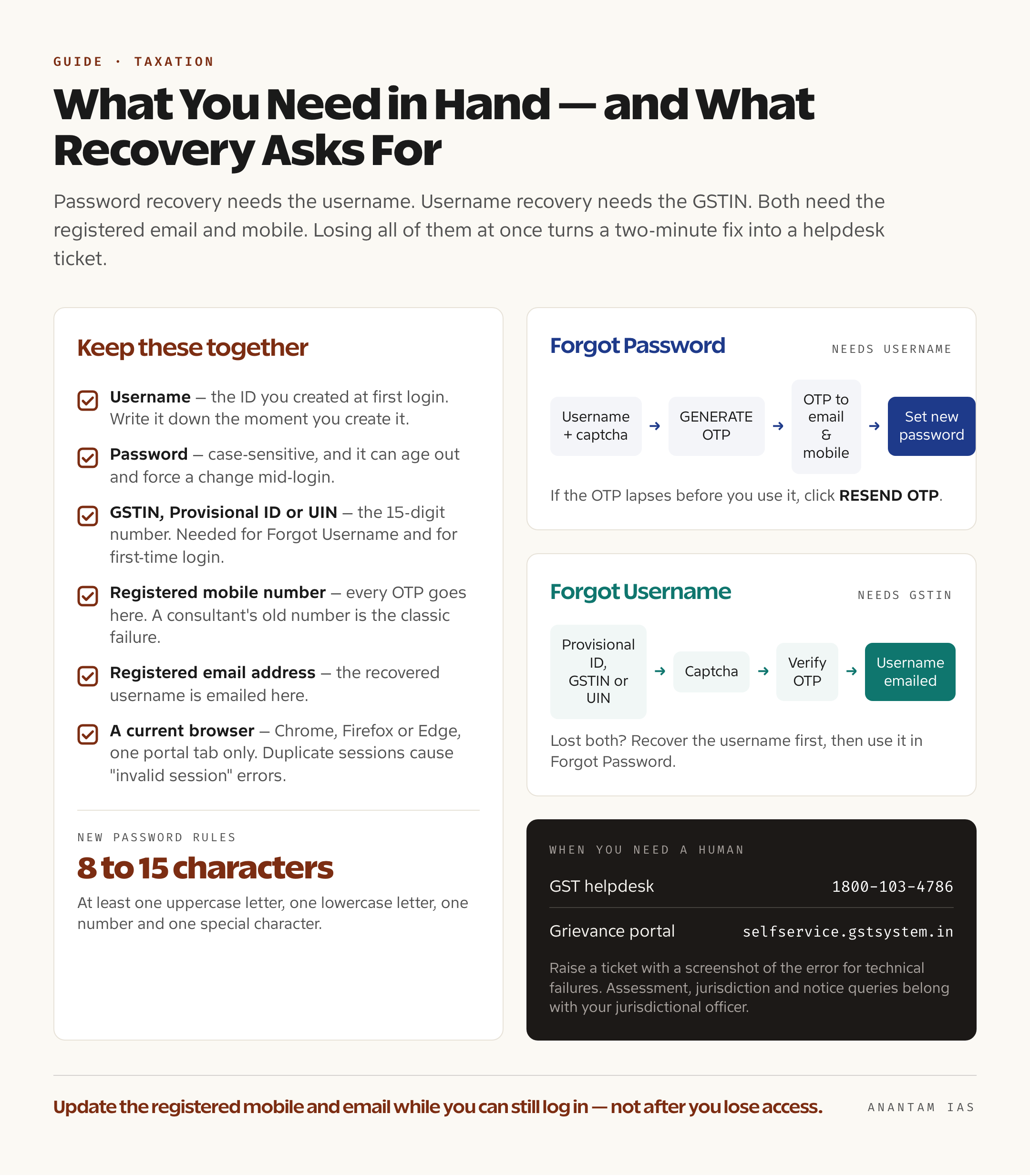
One useful habit: write the username down the moment you create it. Password recovery here needs the username, and username recovery needs the GSTIN — losing both at once turns a two-minute fix into a helpdesk ticket.
Registering for the First Time
If you have no credentials at all, the login page is the wrong door. Registration runs through Services > Registration > New Registration on the portal, and it happens in two parts.
Part A collects the basics: the type of taxpayer, the state and district, the legal name of the business exactly as it appears against your PAN, the PAN itself, an email address and a mobile number. Both the email and the mobile are verified by separate one-time passwords. When that clears, the portal issues a Temporary Reference Number (TRN). The TRN is valid for 15 days — you use it to log back in and finish the application.
Part B is the substantive form: constitution of the business, details of promoters or directors and of the authorised signatory, the principal and additional places of business with address proof, the goods and services you deal in with HSN or SAC codes, bank account details, and photographs and supporting documents in the formats the portal specifies.
You then verify the application. Proprietors, partnerships, HUFs and individuals can submit using e-Sign through Aadhaar OTP or an Electronic Verification Code; companies and LLPs need a Digital Signature Certificate registered on the portal.
Aadhaar authentication is the step that decides how fast this goes. Under the current rules, regular and composition applicants must authenticate — government departments, public sector undertakings, local authorities and statutory bodies are outside the requirement. Choosing “Yes” sends an authentication link, and the common OTP arrives on the mobile number and email registered with UIDAI against that Aadhaar. Some applicants are routed instead to biometric verification at a GST Suvidha Kendra, based on the system’s risk assessment. Applicants who choose “No” have to visit a Suvidha Kendra anyway for photo capture and document verification.
Get the authentication right and the application can be cleared quickly; fail it or skip it and your file is marked for a mandatory site visit and officer scrutiny before anything moves.
On final submission you receive an Application Reference Number (ARN) by email and SMS. Track it under Services > Registration > Track Application Status. If the officer raises a query, you’ll get a notice in Form GST REG-03 and must reply within the stated window. Once approved, the certificate in Form GST REG-06 — carrying your GSTIN — is available for download from the portal, and your login credentials follow.
Key Services on the Dashboard
The dashboard is a summary screen: your profile completion, the return-filing status for recent periods, and any notices or orders waiting for you. The real work sits under the top menu.
| Menu | What you do there |
|---|---|
| Dashboard | Profile snapshot, recent return status, notices and orders in one view |
| Services > Registration | Amend registration details, apply for cancellation, revoke a cancellation, opt in or out of composition |
| Services > Ledgers | Electronic cash ledger, credit ledger and liability register — the running account of what you’ve paid and what credit you hold |
| Services > Returns | File and view GSTR-1, GSTR-3B, the annual return and the reconciliation statement; check what your suppliers have reported |
| Services > Payments | Create a challan, pay by net banking, UPI, card, NEFT or RTGS, and view challan history |
| Services > User Services | Download the registration certificate, view notices and orders, file replies, search HSN, submit a letter of undertaking |
| Services > Refunds | File a refund application and track it by ARN |
| Search Taxpayer | Verify a GSTIN or look up a taxpayer by PAN — available without logging in too |
Two things on this screen are worth checking every month even when you’re not filing. First, the notices and orders section: departmental communication is served here, and the clock on a reply starts whether or not you’ve read it. Second, the credit ledger against what your suppliers have actually uploaded — an unreported invoice at their end becomes a blocked credit at yours.
Common Login Problems and How to Fix Them
Most failures fall into a handful of patterns, and nearly all of them are fixable without calling anyone.
Forgot your password. On the login page, click Forgot Password. Enter your username and the captcha, then click GENERATE OTP. The one-time password goes to the email address and mobile number registered on the portal. Enter it, click CONTINUE, then set a new password. It must be 8 to 15 characters and include at least one uppercase letter, one lowercase letter, one number and one special character. If the OTP lapses before you use it, click RESEND OTP.
Forgot your username. Click Forgot Username below the login button. Here the portal asks for your Provisional ID, GSTIN or UIN plus the captcha, then sends an OTP to your registered email and mobile. Verify it, and the username is emailed to your registered address.
OTP never arrives. Check the spam folder first, and confirm the mobile isn’t blocking transactional SMS through a DND setting. Where the problem is genuine, it’s usually that the mobile number or email on record is one you no longer use — a common situation when a former consultant registered the business. The fix is not another retry: you need the contact details on the registration amended, which is a non-core amendment on the portal, or help from the jurisdictional office if you can’t get in at all.
Account locked. Repeated wrong passwords lock the account temporarily. Wait it out rather than hammering the login, then use the Forgot Password route.
Captcha keeps rejecting you. Refresh the image rather than squinting at it, and disable any autofill extension that’s stuffing the field.
Digital signature not detected. DSC signing needs the emSigner utility running on the same machine, a supported browser, and the token plugged in. Restart the utility, allow the local port through your firewall, and try a fresh browser session.
Pages loading oddly or forms refusing to submit. Use a current version of Chrome, Firefox or Edge, clear cache and cookies for the site, switch off aggressive ad-blockers, and avoid two portal tabs at once — a duplicate session is a frequent and undiagnosed cause of “invalid session” errors.
When you need a human. The GST helpdesk number listed on the portal’s own contact page is 1800-103-4786. For anything that needs a written trail, use the Grievance Redressal Portal for GST at selfservice.gstsystem.in, where you raise a ticket, attach a screenshot of the error, and track resolution by ticket number. That self-service route is the better first move for technical failures, because the screenshot usually saves a round of back-and-forth. Questions about your assessment, jurisdiction or a specific notice belong with your jurisdictional officer, not the helpdesk.
FAQ
Is my GSTIN the same as my GST portal username? No. The GSTIN is your 15-digit registration number, printed on invoices and visible publicly. The username is a private ID you created at first login and it is what the login box wants. The GSTIN is used only in the Forgot Username flow and in first-time login.
I’ve forgotten both my username and my password. What now? Recover the username first using your GSTIN through Forgot Username — it comes to your registered email. Then use that username in Forgot Password. Both steps need access to the registered email and mobile, so if those are stale, get them updated before anything else.
Can I change the mobile number and email linked to my GST account? Yes, through a non-core amendment of the registration on the portal, which does not need officer approval. You need to be logged in to do it, which is exactly why the details should be updated while you still have access, not after you lose it.
How many people can use one GST login? The authorised signatory holds the primary credentials. Registered taxpayers can also create sub-users with limited rights under User Management, which is far safer than sharing one password with an accountant, a consultant and a clerk. Sub-user access can be withdrawn without disturbing the main account.
Is there an official GST mobile app for logging in? The GST system’s own filing services are browser-based. Treat any third-party app that asks for your portal username and password as a risk — sharing those credentials with outside software puts your returns, ledgers and refunds in someone else’s hands.
How do I know a “GST registration” website is fake? The government’s portal is www.gst.gov.in and nothing else. Registration on it is free; you pay no fee to the portal for applying. Sites charging for “instant GSTIN”, asking for your login credentials, or advertising on search results with government-style logos are private intermediaries at best.
Tell Google you want more of this.
Add Anantam IAS as a preferred sourceOne tap, and this site shows up more often in your own Top Stories, AI Overviews and AI Mode. Remove it any time.