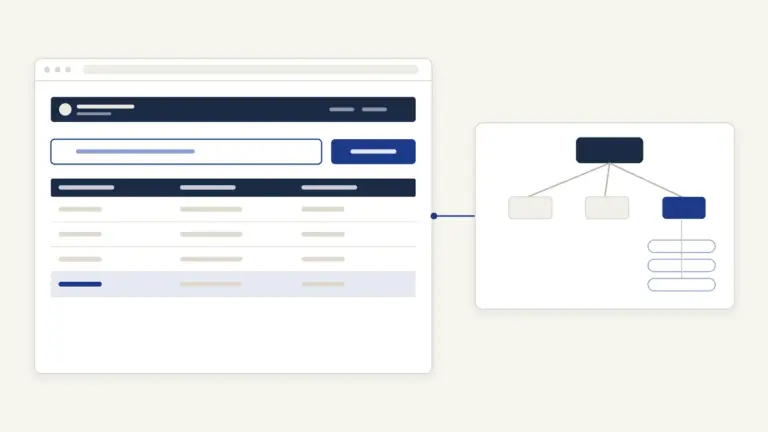

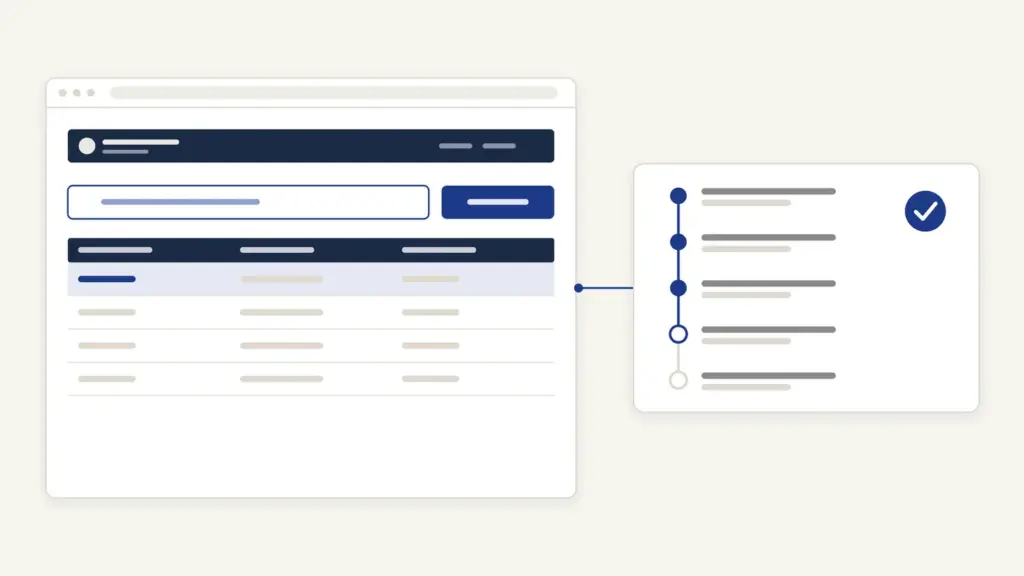
TNeSevai is Tamil Nadu’s online counter for government certificates and services, run at tnesevai.tn.gov.in by the Tamil Nadu e-Governance Agency (TNeGA). Most people come to TNeSevai for revenue certificates, the community, nativity, income, first graduate and legal heir certificates issued through the taluk office, and then to check the application status or download the signed certificate. You can apply at any e-Sevai centre or from your own citizen login.
The confusion most users carry is that TNeSevai and the certificate are the same system. They aren’t. TNeSevai is the front door, but the certificate is processed and signed on the Tamil Nadu e-District application, which is why clicking a service opens a new tab, why status checks sometimes send you to tnedistrict.tn.gov.in, and why everything hangs on one number, your CAN or Citizen Access Number. Once that makes sense, the portal stops feeling like a maze.
TNeSevai at a Glance
TNeGA works under the state’s Information Technology and Digital Services Department. Here are the basics from the portal and TNeGA’s own pages.
| Fact | Detail |
|---|---|
| Portal | tnesevai.tn.gov.in (citizen portal at tnesevai.tn.gov.in/citizen) |
| Run by | Tamil Nadu e-Governance Agency, IT and Digital Services Department |
| Back end | Tamil Nadu e-District application (tnedistrict.tn.gov.in) |
| Key ID | CAN (Citizen Access Number), valid for life |
| Revenue certificates | REV-101 to REV-120: community, nativity, income, first graduate, legal heir, OBC, residence and more |
| Charges at centres | Rs 0 department charge plus Rs 60 service charge for revenue certificates |
| Ways to apply | e-Sevai centre, or citizen login after registration |
| Helpdesk | 1800-425-6000 (toll free), tnesevaihelpdesk[at]tn[dot]gov[dot]in |
e-Sevai centres operate across the state, and the citizen portal links a downloadable list of active centres so you can find the nearest one.
Services Offered on TNeSevai
The portal groups services by department code. The Revenue Department’s REV codes are the ones students, job seekers and families need most.
| Code | Certificate | Typical use |
|---|---|---|
| REV-101 | Community Certificate | Reservation in admissions and jobs |
| REV-102 | Nativity Certificate | Proof of being a native of Tamil Nadu |
| REV-103 | Income Certificate | Scholarships, fee concessions and income-linked schemes |
| REV-104 | First Graduate Certificate | Concessions for the first graduate in a family |
| REV-105, REV-109 | Deserted Woman and Widow Certificates | Welfare and pension schemes |
| REV-114 | Legal Heir Certificate | Claims after a family member’s death |
| REV-115 | Other Backward Classes (OBC) Certificate | Central OBC reservation |
| REV-116 | Residence Certificate | Proof of current residence |
| REV-117, REV-118 | Small or Marginal Farmer, Solvency Certificates | Farm schemes, bank guarantees and tenders |
The Revenue block also carries the Agricultural Income, Family Migration, Unemployment, Inter Caste Marriage, No Male Child and Unmarried certificates, the certificate for loss of educational records due to disasters, social security pension applications and two licences. Beyond revenue, the portal handles services such as fire licences, drug licences, boiler registration, ration card changes and municipal tax payments.
If you need the background on what these certificates prove in general, see our guides to the caste certificate, the income certificate and the domicile certificate. The state community certificate and the central OBC certificate serve different purposes, which is why TNeSevai lists them separately.
How to Register for TNeSevai Login
The citizen portal now shows a notice asking everyone, including earlier users, to register as a New User to keep using its services. Registration takes a few minutes.
- Open tnesevai.tn.gov.in/citizen and click New User? SignUp here under Sign In.
- Fill Full Name, choose your District and Taluk, and enter your Mobile Number. Email Id is optional.
- Enter your Aadhar No, then choose a Login Id, Password and Confirm Password.
- Type the captcha, which isn’t case sensitive, and submit.
If you don’t have Aadhaar or don’t want to give it, the citizen page offers a separate CAN registration route for exactly that case. Use Forgot Password? or Forgot User Name? on the Sign In box if you lose access.
What CAN Is and Why It Matters
Your CAN is a one-time profile of your personal details that every e-Sevai application draws from. The portal’s FAQ says the CAN is required for all e-Sevai services, is valid for life, and that you use the same CAN for every service. If you’ve ever applied at a centre before, you probably already have one.
A lost CAN can be found by searching with your mobile number, date of birth, name or email. To correct details on a CAN, open any revenue service from your login, find your CAN in the search, verify the OTP sent to the registered mobile and click Edit CAN Detail. Fix wrong spellings here first, because the certificate copies whatever the CAN says.
How to Apply for a Certificate on TNeSevai
The steps are the same for community, nativity and income certificates. They follow the portal’s FAQ and TNeGA’s training manual for the income certificate.
- Log in through the citizen login with your login ID, password and captcha.
- Open the Services tab, choose DEPARTMENT WISE and click Revenue Department.
- Click the service, for example REV-103 Income Certificate. It opens in a new tab on the e-District application.
- Click Proceed. Search for your CAN using any of the fields given, or click Register CAN and complete it with an OTP if you don’t have one.
- Select your CAN record and click Proceed. Your personal and address details fill in automatically and can’t be edited on the form.
- Fill the service-specific section. For an income certificate, add each family member with their source of income and monthly income; the annual income is worked out for you. Click Submit.
- Upload the listed documents in the allowed file type and size, then click Make Payment and Confirm Payment.
- Print the acknowledgement with Print Receipt. The application number on it is your key for tracking and download.
An application saved but not paid sits under Saved Application, where you can add documents or pay later. Paid ones move to Submitted Application, and Reprint Receipt gives you the acknowledgement again.
Documents You Need
The portal’s FAQ and service list name the documents for each certificate:
- Community Certificate: photo, address proof, the community certificate of your father, mother or a sibling, and a self-declaration.
- Nativity Certificate: photo, address proof, birth certificate, a school, employment or other record proving continuous residence for the last 5 years, and a self-declaration.
- Income Certificate: photo, address proof, details of land holdings and houses owned, family or smart card, salary certificate, PAN card, trade details where relevant, and a self-declaration.
- Residence Certificate: photo, current address proof and a self-declaration, with supporting IDs such as passport, driving licence, PAN card or a bank or post office passbook with photograph.
Fees and Timelines
The published service list shows a Rs 0 department charge and a Rs 60 service charge for each revenue certificate at e-Sevai centres. When you apply from your own login, the payment page shows the total fee before you confirm, so check it there.
The service list gives a stipulated timeline for only some certificates: 07 days for the nativity certificate and 15 days for the income, deserted woman and inter caste marriage certificates. For the community, legal heir and residence certificates the list doesn’t publish a timeline, so this guide doesn’t quote one.
How to Check TNeSevai Status
You can track an application in two places:
- From your login: open the Check Status tab and enter your application number.
- Without logging in: open the Tamil Nadu e-District status page at tnedistrict.tn.gov.in/tneda/out_status.xhtml and enter the application number. It shows the applicant’s name, the request, the date of request and the current status.
If an officer sends your application back for corrections, it won’t show as rejected. Click the service name after logging in and open the Returned application tab to see what’s needed.
How to Download and Verify the Certificate
The certificate becomes available once the taluk office approves it and it’s digitally signed.
- Log in and open Check Status.
- Enter the application number and click Search.
- Click the Download certificate link and save the PDF.
To check that a certificate is genuine, the e-District site has a Verify Certificate page that asks for the Certificate Number and the Mobile Number. Colleges and employers can use it too.
Common Errors and Their Fixes
Most TNeSevai problems come from a handful of causes:
- Old login doesn’t work. Register again as a New User, as the citizen portal’s notice asks.
- Wrong name or address on the certificate. It came from the CAN. Correct the CAN with Edit CAN Detail before applying again.
- Two CANs for one person. Search with your mobile number and date of birth, and keep using the record you find instead of creating a new one.
- Application missing from Submitted. Payment wasn’t completed. Finish it from Saved Application.
- Payment failure. The portal has posted notices about bank-specific disruptions; try another bank or payment mode.
- Status unchanged for long. Check the Returned application tab before assuming it’s pending.
For portal faults, call the e-Sevai helpline on 1800-425-6000 or write to tnesevaihelpdesk[at]tn[dot]gov[dot]in. TNeGA announced on 2 February 2026 that the helpline now runs extended hours.
Where to Complain About Delays
The portal’s Grievances/Complaints page points to two channels: the Chief Minister’s Helpline portal at cmhelpline.tnega.org and the CM Cell at cmcell.tn.gov.in. Use these for a certificate that’s stuck at the taluk level, quoting your application number, and keep the e-Sevai helpline for technical faults on the portal itself. The portal doesn’t cite a statutory appeal route of its own, so the CM Helpline is the documented escalation.
TNeSevai Today
The service is in the middle of an upgrade. On 12 August 2026, TNeGA announced e-Sevai 2.0, from the Tamil Nadu Budget 2026-27: every existing e-Sevai centre is to be upgraded with high-speed internet and more welfare services, and the Namma Arasu WhatsApp chatbot is to grow from 76 to 275 services.
TNeSevai is one of the older examples of e-governance built on the e-District model: a common front end, many departments behind it. Other states run comparable counters; see our guides to Seva Sindhu in Karnataka and the AP Seva portal in Andhra Pradesh. If your Aadhaar details don’t match your CAN, fix the Aadhaar first using our guide to Aadhaar card update online. For the state’s administrative map, see the districts in Tamil Nadu.
Frequently Asked Questions
What is TNeSevai?
TNeSevai is the Tamil Nadu government’s e-Sevai portal at tnesevai.tn.gov.in, run by the Tamil Nadu e-Governance Agency. It delivers certificates such as community, nativity and income certificates, along with other department services, through e-Sevai centres and a citizen login.
How do I create a TNeSevai login?
Open the citizen portal and click New User SignUp. Enter your full name, district, taluk, mobile number, Aadhaar number, a login ID and password, then submit with the captcha. Earlier users are also asked to register again as new users.
What is CAN in TNeSevai?
CAN is the Citizen Access Number, a one-time profile of your details that every e-Sevai application uses. It is valid for life and the same CAN works for all services. A lost CAN can be found by searching with your mobile number, date of birth, name or email.
How can I check my TNeSevai application status?
Log in and use the Check Status tab with your application number. You can also check without logging in on the Tamil Nadu e-District status page by entering the application number.
How do I download a certificate from TNeSevai?
After the certificate is approved and digitally signed, log in, open Check Status, enter the application number and click Search. Then click the Download certificate link to save the PDF.
What is the fee for a community certificate on TNeSevai?
The published e-Sevai service list shows no department charge and a Rs 60 service charge for revenue certificates, including the community certificate. The payment page shows the total fee before you confirm an online application.
How many days does an income certificate take in Tamil Nadu?
The e-Sevai service list gives a stipulated timeline of 15 days for the income certificate and 7 days for the nativity certificate. It does not publish a timeline for the community certificate.
How can I verify a Tamil Nadu e-Sevai certificate?
Use the Verify Certificate page on the Tamil Nadu e-District website. Enter the certificate number and the mobile number linked to the application to confirm it is genuine.
What is the TNeSevai helpline number?
The e-Sevai helpdesk number is the toll-free 1800-425-6000, and the email is tnesevaihelpdesk at tn.gov.in. For delays at the taluk level, the portal points to the Chief Minister’s Helpline portal.
Tell Google you want more of this.
Add Anantam IAS as a preferred sourceOne tap, and this site shows up more often in your own Top Stories, AI Overviews and AI Mode. Remove it any time.